Module 1 Distributions, preprocessing, and probability
1.1 Why this module
Statistics begins with one honest question about real data: what does this column of numbers actually look like, and what can it tell us about the next observation we have not yet seen? In this module you take a single weather station, download a focused slice of its history from NOAA, and walk the entire pipeline: clean the file, describe the column, and estimate probabilities two ways (counting and modeling), including the chance that daily weather falls between two levels you care about. Every later module in this book builds on the habits you form here.
You will work mainly with daily maximum temperature (TMAX) for one National Oceanic and Atmospheric Administration (NOAA) station, summarized over five Julys. July is chosen on purpose: it limits seasonality to one month, keeps the histogram interpretable, and gives roughly 150 observations, enough for the Law of Large Numbers to start cooperating without crushing the spreadsheet.
1.2 What you will be able to do
By the end of this module you should be able to:
- Download a clean GHCN-Daily slice for one station and one season, and document station, dates, units, and missing-value rule.
- Compute and interpret sample size \(n\), mean \(\bar{x}\), and sample standard deviation \(s\) for a continuous column.
- Read a histogram and describe shape (roughly symmetric, skewed, heavy tailed) in plain language.
- Compute an empirical probability for an event from row counts.
- Standardize an observation into a \(z\) score, and use the normal model in Excel to compute a theoretical probability for the same event.
- Compare the empirical and theoretical answers, and judge whether the normal plug-in is acceptable here.
- Define an interval event \(a < \text{TMAX} < b\), compute \(\hat{P}(a < \text{TMAX} < b)\) empirically and with the normal plug-in, and interpret both in plain language.
1.3 Tools and prerequisites
Tools: a web browser for NOAA Climate Data Online, Microsoft Excel for the hands-on lab, and optionally VS Code for inspecting raw CSV.
Prerequisites: comfort with arithmetic, percentages, basic algebra, and following step by step instructions in a spreadsheet. No prior statistics is assumed.
1.3.1 Workbook layouts in this chapter
Screenshots in the teaching sections show a slim layout (for example Date, TMAX, and one z column on Data). The Hands-on lab section at the end is the authoritative specification for what you submit: flag columns, Z_score in column G, and the full Estimates block through row 31. Build toward the lab layout even if an early figure looks simpler.
Figures illustrate controls and cell layout; dates, month (July), and column letters in screenshots may differ from your submitted workbook.
1.3.2 Roadmap
- Download from NCEI, save as
.xlsx, and subset to five Julys onData. - Summarize
TMAXand plot a histogram onEstimates; judge shape before using the normal model. - Compute empirical and normal probabilities, compare them in column C (rows 16 to 23), and complete column C on
Estimatesthrough row 31 (including station, years, and units on rows 2 to 4; emphasize the interval rows 19 and 23).
1.4 The data: NOAA GHCN-Daily
The Global Historical Climatology Network Daily (GHCN-Daily) is one of the most cited weather records in the world. Each row is one calendar day for one station, and the columns include daily maximum temperature (TMAX), daily minimum temperature (TMIN), precipitation (PRCP), snow (SNOW), and others.
- Portal: NOAA GHCN-Daily, Climate Data Online.
- Core variables this module uses:
TMAX(primary). - Units: confirm whether your export reports temperatures in whole degrees Fahrenheit or in tenths of a degree. This module assumes whole degrees Fahrenheit. If daily highs look like 854 instead of 85.4, divide by 10 (GHCN tenths) before analysis.
- Station: pick one GHCN-Daily location in North Carolina (ZIP search or map is fine). You will analyze July only, for five calendar Julys (for example the five most recent complete years), in Excel after download.
- Date range for the NOAA order: 1 January 2010 through 31 December of last year. Request the wide window once so you do not repeat the cart; you will filter to your five Julys in the spreadsheet.
- File naming: when you save the workbook, use
firstname_lastname_module1.xlsx(for examplejohn_doe_module1.xlsx). - NCEI may take a few minutes to process the order and email a download link. Check your inbox when the extract is ready (see cleaning step 1 for open and save steps).
- Missing
TMAX(module default): treat a blank or emptyTMAXcell as missing and exclude that row. If your export includes quality flags, state inEstimatescolumn C on row 2 whether you also exclude flagged values and how.
The figures below walk through Climate Data Online for Daily Summaries: your station, ZIP or map search, dates, and cart choices can differ, but the controls and order of steps stay the same.
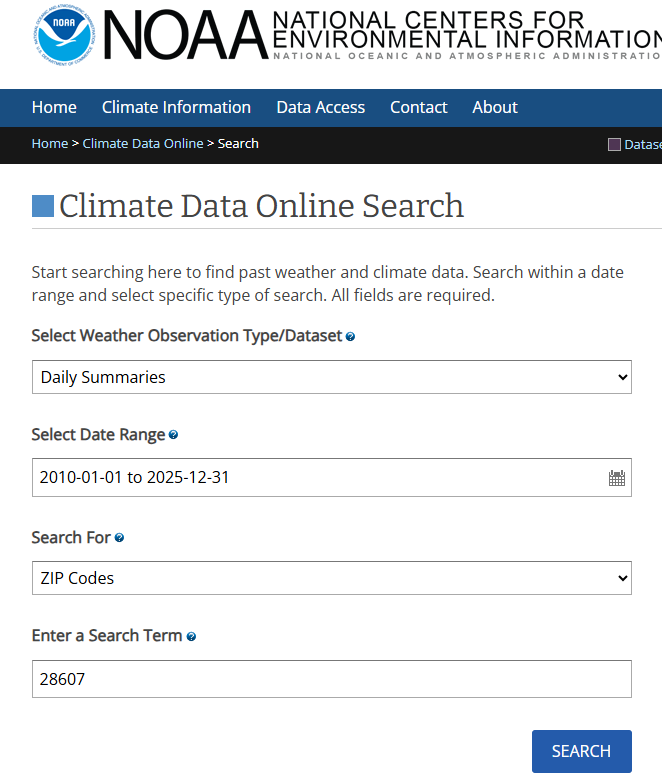
Figure 1.1: Climate Data Online search form with Daily Summaries selected, a date range, and a location search term (here a ZIP code). Choose the dataset and window you want before you run Search.
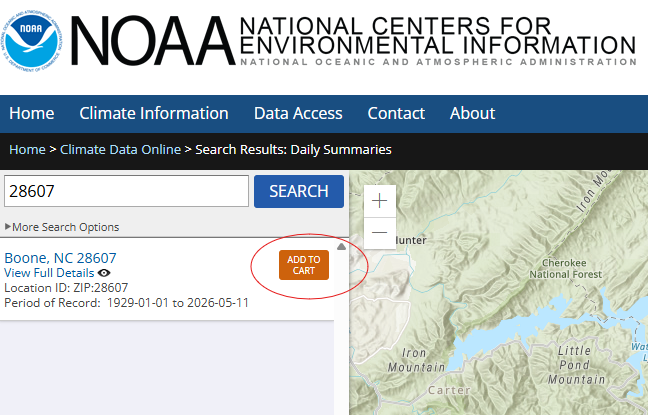
Figure 1.2: Search results list the matching place and period of record. Use Add to cart to queue that location for a Daily Summaries order; the map helps confirm you picked the intended area.
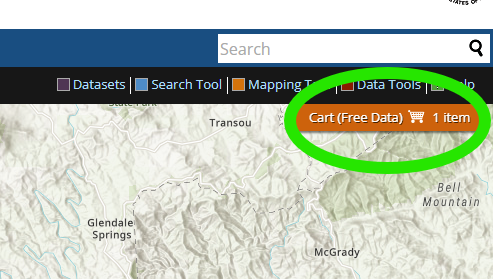
Figure 1.3: After adding a location, open Cart (Free Data) from the top bar to configure the download. The cart badge shows how many selections are waiting before you set format and options.
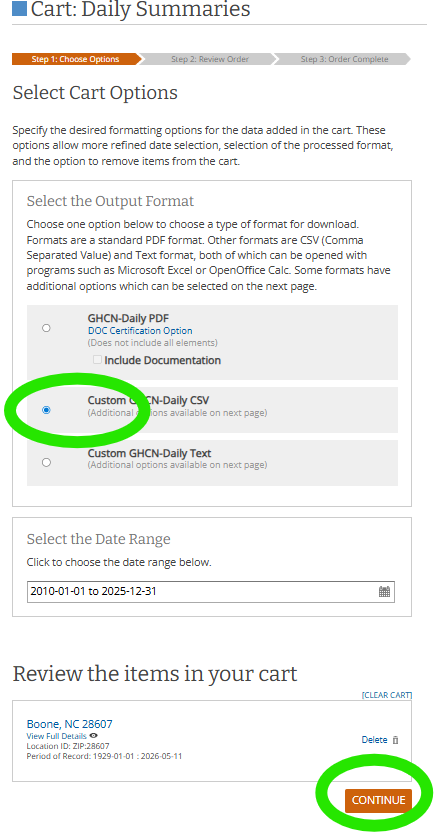
Figure 1.4: Cart step 1: pick Custom GHCN-Daily CSV if you want a spreadsheet-friendly export, confirm the date range and cart line, then choose Continue to move to custom columns and flags.
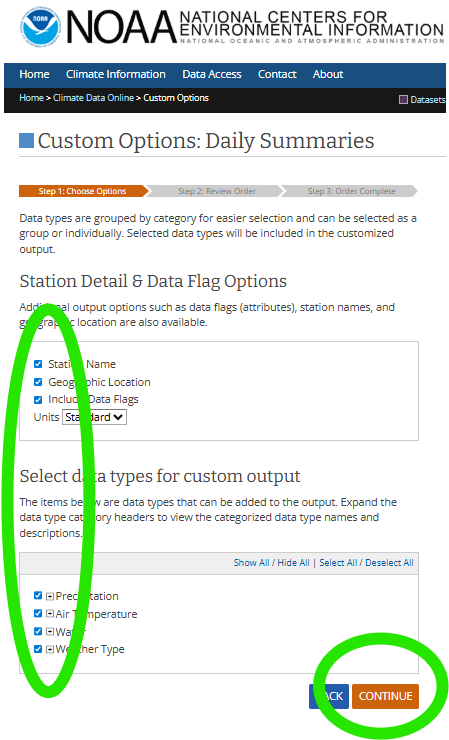
Figure 1.5: Custom options: turn on station name, geographic location, and data flags as needed, choose Standard units unless your syllabus says otherwise, and select the data types you need (for this module, air temperature at minimum). Continue when the checklist matches your lab.
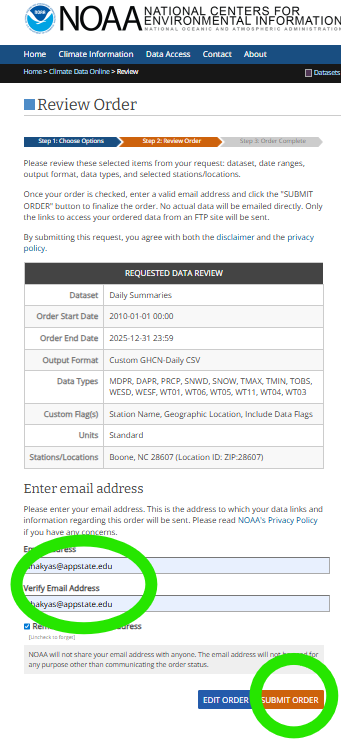
Figure 1.6: Review order lists dataset, dates, format, variables, and locations. Enter and verify your email, then submit; NCEI emails a link when the custom extract is ready.
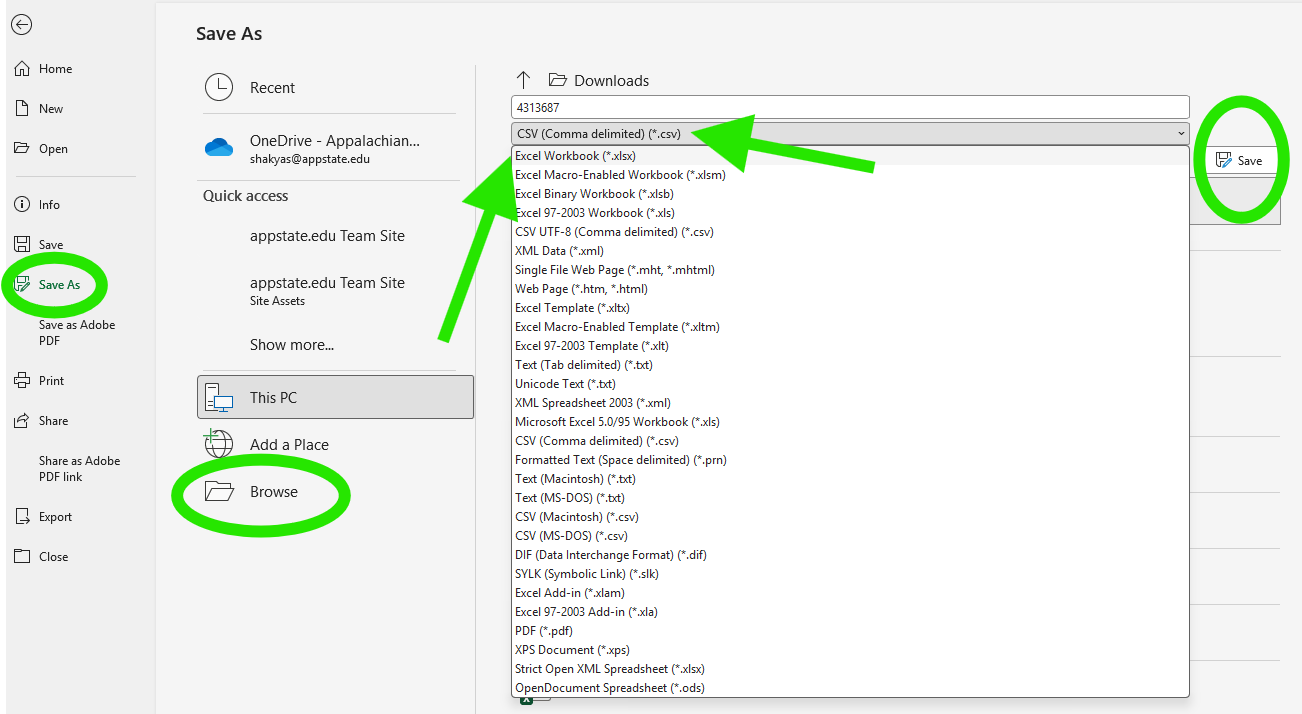
Figure 1.7: Use the link in NCEI’s email to download the custom extract, then open the CSV in Excel and save the workbook as .xlsx with your module file name.
The next section picks up in Excel: filter to your five Julys, build Data and Estimates, and analyze TMAX.
1.5 Cleaning and describing one column
Work on the raw import sheet first, then copy a slim July table to Data. Follow this sequence (replace N with your last data row on Data):
- Open the CSV from NCEI in Excel and save the file as
.xlsxwith your module file name. - On the import sheet, turn on Filter (Home → Sort & Filter → Filter) so you can subset rows.
- Keep July rows only for your five chosen years, and drop rows with missing
TMAX(blank cell, or flagged per the rule you document onEstimatesrow 2). - Sort remaining rows ascending by date.
- Create a worksheet named
Data. Copy Date into column A and TMAX into column B (values only, or links). Do further analysis onDataonly. - Add a worksheet named
Estimatesfor summaries, probabilities, the histogram, and column C documentation.
The filter step on the wide import sheet is shown below; your station columns and July subset will differ from the screenshot.
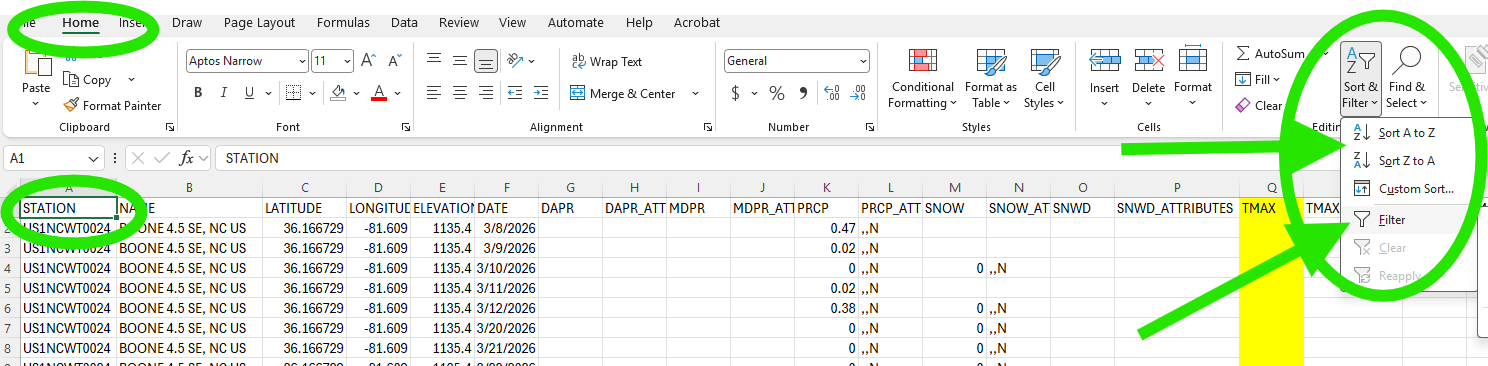
Figure 1.8: On the Home tab, select the header row on the import sheet, open Sort & Filter, and choose Filter so you can keep July rows, drop missing TMAX, and sort by date before you copy to Data.
The Data sheet holds one row per July day in your five-year stack. The lab adds flag and Z_score columns later; the figure shows the core two columns.
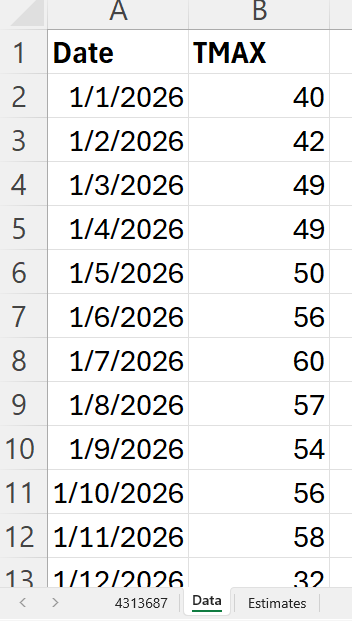
Figure 1.9: Data sheet after cleaning: column A holds calendar dates and column B holds daily maximum temperature (TMAX). Use this tab as the source for COUNT and later formulas; the Estimates tab reads from it.
1.5.1 Summaries and shape
With the cleaned column in hand, three numbers describe most of what matters:
\[n = \text{number of non-missing rows after cleaning}\]
\[\bar{x} = \frac{1}{n}\sum_{i=1}^{n} x_i\]
\[s = \sqrt{\frac{1}{n-1}\sum_{i=1}^{n}(x_i-\bar{x})^2}\]
Read \(\bar{x}\) as the typical average of daily highs in your sample and \(s\) as a rough size of day to day swings around the mean, on the original Fahrenheit scale.
Always plot a histogram before you trust a mean. The histogram answers shape questions a single number cannot: is the column roughly bell shaped, skewed toward hot extremes, or stretched by a few outliers? You will need that judgment when you use the normal plug-in later in this module.
On Estimates, record \(n\), \(\bar{x}\), and \(s\) with formulas that point at Data!B2:B$N: COUNT, AVERAGE, and STDEV.S. In the lab layout, these live in B2 through B4 (see the hands-on lab). Add a histogram of TMAX on the same sheet (Insert → charts → histogram, using Data!B2:B$N). Write a one-sentence shape description in column C on the row where you discuss summaries (for example next to the SD row) or directly below the chart. Check that \(n\) matches the number of rows you kept on Data.
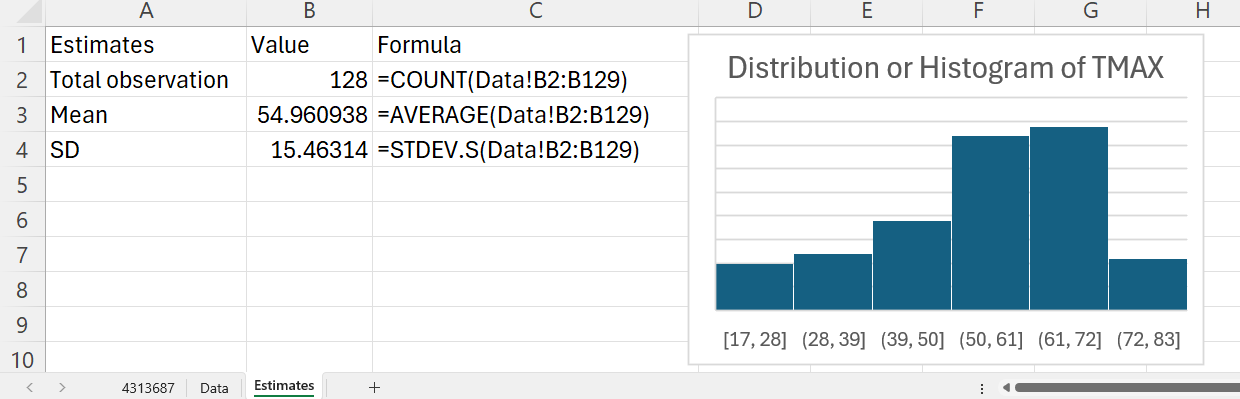
Figure 1.10: Estimates sheet: summary table for n, mean, and sample standard deviation with formulas tied to the Data tab, plus a histogram of TMAX. Layout example only; your July subset uses n, mean, and SD in B2:B4. Check that n matches the rows you kept after cleaning.
1.6 Empirical probability
Empirical probability is just a fraction of your sample. If \(A\) is an event such as “TMAX is below 75 degrees Fahrenheit,” then
\[\hat{P}(A) = \frac{\#\{\text{rows where } A \text{ is true}\}}{n}.\]
Two practical points:
- Empirical probability needs no model. It only needs the data and a clear rule for the event.
- It depends on your sample. A different five Julys would give slightly different fractions; we study that variability in Module 2.
Finding the empirical probability of an event is straightforward: count rows where the condition is true and divide by \(n\) on Estimates!B2.
For example, the empirical probability that TMAX is below 75 °F is =COUNTIF(Data!B2:B$N,"<75")/Estimates!$B$2. The hands-on lab lists the full set of events and formulas on the Estimates sheet (rows 16 to 19 in the lab layout).
1.7 The normal model and z scores
Many physical measurements cluster around a central value, with a roughly bell shaped histogram. The normal distribution is a clean mathematical curve that captures that shape. We never claim weather “is” exactly normal. We use the normal model as a useful approximation when the histogram justifies it.
The standardized score expresses one observation in standard deviation units:
\[z = \frac{x - \bar{x}}{s}.\]
The standardization formula rescales the sample so the \(z\) scores have mean 0 and sample standard deviation 1.
To read a \(z\) score: \(z = 1.5\) means one and a half standard deviations above the mean; \(z = -2\) means two standard deviations below the mean. Standardization removes the original units and makes any value comparable to the standard normal curve, which has mean 0 and standard deviation 1.
Two algebraic facts you will rely on in the lab:
- The mean of all the \(z\) scores in your sample is exactly 0.
- The sample standard deviation of those \(z\) scores is exactly 1 when computed with the same \(n-1\) denominator used for \(s\).
Add a column on the Data sheet for each row’s \(z\) score, using \(\bar{x}\) in Estimates!B3 and \(s\) in Estimates!B4 (lab layout). The figure shows a teaching layout with Z-TMAX in column C; in the lab you will use column G and the header Z_score.
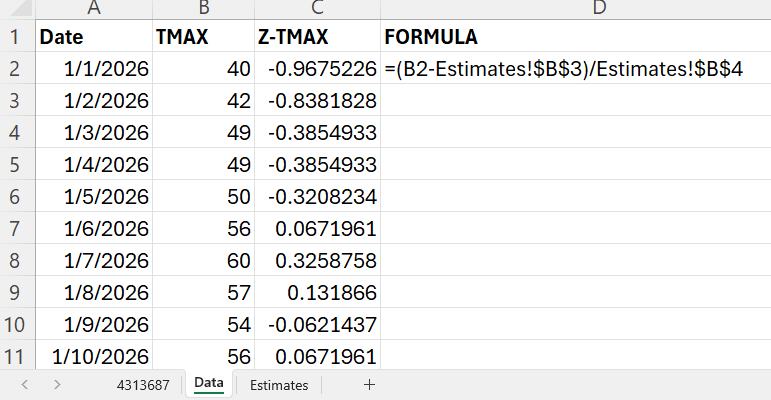
Figure 1.11: Data sheet with Z-TMAX: each row’s TMAX is converted to a z score via (value minus mean) divided by sample SD, with mean and SD read from Estimates. Fill the formula down so every day uses the same mean and sample SD.
For the first data row, use =(B2-Estimates!$B$3)/Estimates!$B$4. Use $ on the Estimates references so they stay fixed when you fill down.
1.8 Theoretical probability with the normal plug-in
Once we know the data looks like it is roughly bell shaped, and we know \(\bar{x}\) and \(s\), we can use the normal model to compute the theoretical probability for the same event. Use Excel NORM.DIST with mean Estimates!B3 and sample SD Estimates!B4. For example, the theoretical probability that TMAX is below 75 °F is =NORM.DIST(75,Estimates!$B$3,Estimates!$B$4,TRUE).
Note that in this setup you do not need the row-level data. Knowing the mean and standard deviation, and that the histogram is roughly bell shaped, is enough to compute the theoretical probability. That is the power of the normal model: you can find the probability of an event without scanning the data rows again.
Forward probabilities (find a probability from a value):
\(P(X \leq x) \approx \text{NORM.DIST}(x,\bar{x},s,\text{TRUE})\) (Excel TRUE gives the cumulative probability up to \(x\))
\(P(X > x) \approx 1 - \text{NORM.DIST}(x,\bar{x},s,\text{TRUE})\)
\(P(a < X < b) \approx \text{NORM.DIST}(b,\bar{x},s,\text{TRUE}) - \text{NORM.DIST}(a,\bar{x},s,\text{TRUE})\) (match strict inequalities on the data when you compare to row counts)
1.9 Worked interpretation, one example (interval)
Walk through one fully interpreted interval comparison so the target product is clear before you build the full workbook. The lab uses \(a = 83\) and \(b = 90\) on rows 19 and 23; you may choose other bounds in the business writeup if your syllabus allows.
Suppose for your station and five Julys you find \(n = 155\), \(\bar{x} = 86.4\) °F, \(s = 4.2\) °F, and that 62 days had \(83 < \text{TMAX} < 90\). Then:
- Empirical \(\hat{P}(83 < \text{TMAX} < 90) = 62 / 155 \approx 0.400\), about 40 percent of July days in that band.
- Theoretical \(P(83 < X < 90) \approx \text{NORM.DIST}(90, 86.4, 4.2, \text{TRUE}) - \text{NORM.DIST}(83, 86.4, 4.2, \text{TRUE}) \approx 0.52\).
If those two numbers disagree, write a sentence. Empirical counts only strict between-days in your five Julys; the normal model assumes a smooth bell curve and can assign probability to values between integers that never appear in the data. A skewed or heavy-tailed histogram is a reason to trust the count for planning and treat the normal value as a sensitivity check.
That kind of careful sentence is the deliverable. Numbers without interpretation are not yet statistics. In your workbook, write the same style of comparison in column C for each event in rows 16 to 19 and its matching theoretical row (20 to 23), with extra care on the interval pair (rows 19 and 23).
1.10 Comparing the two probabilities
When you have both an empirical and a theoretical probability for the same event, work through these questions:
- Are they close (within a few percentage points)? If yes, the normal plug-in is doing a reasonable job for that event.
- If they disagree, which one do you trust more for this dataset, and why? Empirical is closer to the actual sample; theoretical is smoother but assumes the bell shape.
- Does the histogram look bell shaped enough to justify the theoretical answer in the first place?
For interval events such as \(83 < \text{TMAX} < 90\), empirical counts use strict inequalities on integers; NORM.DIST treats the normal curve as continuous, so small gaps at 83 or 90 can appear even when the histogram looks fine.
This comparison is the heart of Module 1. A model is a tool, not a truth: empirical probability counts what happened in your sample; theoretical probability uses the normal plug-in in NORM.DIST when the histogram is roughly bell shaped.
1.11 Interval probability: weather between two levels
Many decisions depend on a band of weather, not a single threshold: outdoor staffing when \(75 < \text{TMAX} < 85\), or comfort planning when \(83 < \text{TMAX} < 90\). Define the event clearly, then estimate it two ways.
Empirical (strict bounds on your July rows):
\[\hat{P}(a < \text{TMAX} < b) = \frac{\#\{\text{rows with } a < \text{TMAX} < b\}}{n}.\]
In Excel, with \(a = 83\) and \(b = 90\): =COUNTIFS(Data!B2:B$N,">83",Data!B2:B$N,"<90")/Estimates!$B$2 (lab row 19).
Theoretical (plug-in normal, same \(a\) and \(b\)):
\[P(a < X < b) \approx \text{NORM.DIST}(b,\bar{x},s,\text{TRUE}) - \text{NORM.DIST}(a,\bar{x},s,\text{TRUE}).\]
In the lab layout: =NORM.DIST(90,Estimates!$B$3,Estimates!$B$4,TRUE)-NORM.DIST(83,Estimates!$B$3,Estimates!$B$4,TRUE) (row 23).
The \(z\) scores at 83 and 90 on rows 13 and 15 link the interval on the Fahrenheit scale to the matching check on the standard normal scale (rows 27 and 31). If empirical and theoretical interval probabilities disagree, say whether the histogram, the strict < bounds, or both explain the gap.
1.12 Hands-on lab: July TMAX, five Julys, one North Carolina station
Reproduce the full workbook specification below using your NOAA download. You already ordered a wide date range from NCEI; on the import sheet, keep July rows only for five calendar Julys, then copy to Data as in the cleaning section.
Hygiene rules for this workbook:
- Exclude rows with missing
TMAXper the missing-value rule in the data section (and any flag rule you document onEstimatesrow 2). - Confirm units once; divide by 10 if the export is in tenths of a degree.
- Use strict inequalities (
<and>, not<=or>=). Daily temperatures are nearly integer valued, so the convention matters when you check ties and when you compare toNORM.DISTon an interval.
You will build two worksheets: Data and Estimates. Document station ID, five Julys, units, and your missing-value rule in column C on Estimates rows 2 to 4. Below, replace N in formula ranges with the actual last data row on Data (for example Data!B2:B156).
1.12.1 Build order (follow this sequence)
-
Data columns A and B: Date and
TMAXafter July subset and cleaning. -
Data columns C through F: flag columns (
Flag_LT_75throughFlag_LT_90), filled down. - Estimates rows 2 to 8: \(n\), \(\bar{x}\), \(s\), and the four flag counts; fill column C on rows 2 to 4 (station, years, missing rule, units, histogram shape).
-
Estimates rows 11 to 15: \(z\) values at fixed Fahrenheit thresholds (need
B3andB4only); row 15 supplies \(z\) at 90 °F for the interval formulas. -
Data column G:
Z_score, then Estimates rows 9 to 10 (mean and SD ofZ_score). - Insert the histogram of
TMAXonEstimates(source rangeData!B2:B$N); include the shape sentence in column C on row 4. - Estimates rows 16 to 31: empirical and theoretical probabilities; write comparison sentences in column C for rows 16 to 23.
1.12.2 Sheet Data
Row 1 holds headers; data run from row 2 through row \(N\).
| Cell | Header | Excel pattern |
|---|---|---|
| A1 | Date | ascending dates from your stacked download |
| B1 | TMAX | cleaned numeric daily highs in Fahrenheit |
| C1 | Flag_LT_75 |
=IF(B2<75,1,0), fill down |
| D1 | Flag_LT_85 |
=IF(B2<85,1,0), fill down |
| E1 | Flag_LT_83 |
=IF(B2<83,1,0), fill down |
| F1 | Flag_LT_90 |
=IF(B2<90,1,0), fill down |
| G1 | Z_score | After build-order steps 3 and 4 on Estimates (B3 mean, B4 SD), enter =(B2-Estimates!$B$3)/Estimates!$B$4 in Data!G2 and fill down |
See Build order above; do not fill column G until Estimates!B3 and Estimates!B4 exist.
1.12.3 Sheet Estimates
Column A holds labels, column B holds formulas (display probabilities and \(z\) scores to four decimals), and column C holds your one sentence interpretation in plain language. Row 1 holds short headers in columns A through C (for example Statistic, Value, and Interpretation). Summary cells use B2 for \(n\), B3 for \(\bar{x}\), and B4 for \(s\).
1.12.3.1 Summary block (rows 2 to 15)
Rows 9 and 10 require Z_score on Data (build order step 5). Row 14 (Z at 93 °F) is optional practice and is not used in the probability rows below.
| Row | Label (A) | Formula (B) | Interpretation prompt (C) |
|---|---|---|---|
| 2 | Number of observations | =COUNT(Data!B2:B$N) |
Final \(n\); GHCN station ID; five Julys kept; missing TMAX rule (and flag rule if any) |
| 3 | Mean TMAX | =AVERAGE(Data!B2:B$N) |
Typical July daily high; units confirmed (whole °F or tenths divided by 10) |
| 4 | SD TMAX (sample) | =STDEV.S(Data!B2:B$N) |
Plug-in \(s\) for the normal model; one sentence on histogram shape |
| 5 | Count TMAX < 75 | =SUM(Data!C2:C$N) |
Cool day count |
| 6 | Count TMAX < 85 | =SUM(Data!D2:D$N) |
Mild upper bound count |
| 7 | Count TMAX < 83 | =SUM(Data!E2:E$N) |
Lower edge of warm range |
| 8 | Count TMAX < 90 | =SUM(Data!F2:F$N) |
Days below the hot threshold |
| 9 | Mean of Z_score | =AVERAGE(Data!G2:G$N) |
Should be near 0 |
| 10 | SD of Z_score | =STDEV.S(Data!G2:G$N) |
Should be near 1 |
| 11 | Z at 75 °F | =(75-$B$3)/$B$4 |
Threshold expressed in SD units |
| 12 | Z at 85 °F | =(85-$B$3)/$B$4 |
Threshold expressed in SD units |
| 13 | Z at 83 °F | =(83-$B$3)/$B$4 |
Threshold expressed in SD units |
| 14 | Z at 93 °F | =(93-$B$3)/$B$4 |
A hot day in SD units |
| 15 | Z at 90 °F | =(90-$B$3)/$B$4 |
Upper bound of the lab interval event (\(83 < \text{TMAX} < 90\)); links to rows 19, 23, 27, 31 |
1.12.3.2 Empirical probabilities on the Fahrenheit scale (rows 16 to 19)
| Row | Label (A) | Formula (B) | Interpretation prompt (C) |
|---|---|---|---|
| 16 | Empirical P(TMAX < 75) | =$B$5/$B$2 |
State empirical probability; compare to row 20 |
| 17 | Empirical P(TMAX > 75) | =COUNTIF(Data!B2:B$N,">75")/$B$2 |
Compare to row 21; close within a few points? |
| 18 | Empirical P(TMAX > 85) | =COUNTIF(Data!B2:B$N,">85")/$B$2 |
Compare to row 22 |
| 19 | Empirical P(83 < TMAX < 90) | =COUNTIFS(Data!B2:B$N,">83",Data!B2:B$N,"<90")/$B$2 |
Main interval: state \(\hat{P}\) in plain language; compare to row 23 |
1.12.3.3 Theoretical probabilities, plug-in normal (rows 20 to 23)
| Row | Label (A) | Formula (B) | Interpretation prompt (C) |
|---|---|---|---|
| 20 | Theoretical P(TMAX < 75) | =NORM.DIST(75,$B$3,$B$4,TRUE) |
Match to row 16; trust empirical or normal, and why? |
| 21 | Theoretical P(TMAX > 75) | =1-NORM.DIST(75,$B$3,$B$4,TRUE) |
Match to row 17 |
| 22 | Theoretical P(TMAX > 85) | =1-NORM.DIST(85,$B$3,$B$4,TRUE) |
Match to row 18 |
| 23 | Theoretical P(83 < TMAX < 90) | =NORM.DIST(90,$B$3,$B$4,TRUE)-NORM.DIST(83,$B$3,$B$4,TRUE) |
Match to row 19; which probability would you use for a business decision, and why? |
1.12.3.4 Empirical probabilities on the Z scale (rows 24 to 27)
These should match rows 16 to 19 numerically, because standardization is a one-to-one transformation. Use them as a check that your formulas line up.
| Row | Label (A) | Formula (B) | Interpretation prompt (C) |
|---|---|---|---|
| 24 | Empirical P(Z < z at 75 °F) | =COUNTIF(Data!G2:G$N,"<"&$B$11)/$B$2 |
Should match row 16 |
| 25 | Empirical P(Z > z at 75 °F) | =COUNTIF(Data!G2:G$N,">"&$B$11)/$B$2 |
Should match row 17 |
| 26 | Empirical P(Z > z at 85 °F) | =COUNTIF(Data!G2:G$N,">"&$B$12)/$B$2 |
Should match row 18 |
| 27 | Empirical P(z at 83 °F < Z < z at 90 °F) | =COUNTIFS(Data!G2:G$N,">"&$B$13,Data!G2:G$N,"<"&$B$15)/$B$2 |
Should match row 19 |
1.12.3.5 Theoretical probabilities on the standard normal scale (rows 28 to 31)
These should match rows 20 to 23 algebraically. Verify that they do.
| Row | Label (A) | Formula (B) | Interpretation prompt (C) |
|---|---|---|---|
| 28 | Theoretical P(Z < z at 75 °F) | =NORM.DIST($B$11,0,1,TRUE) |
Should match row 20 |
| 29 | Theoretical P(Z > z at 75 °F) | =1-NORM.DIST($B$11,0,1,TRUE) |
Should match row 21 |
| 30 | Theoretical P(Z > z at 85 °F) | =1-NORM.DIST($B$12,0,1,TRUE) |
Should match row 22 |
| 31 | Theoretical P(z at 83 °F < Z < z at 90 °F) | =NORM.DIST($B$15,0,1,TRUE)-NORM.DIST($B$13,0,1,TRUE) |
Should match row 23 |
1.13 Self-check questions
Answer these in your own words before turning anything in:
- Why order a wide date range from NCEI but analyze only five Julys in Excel?
- Why must flag columns on
Dataexist before the count rows onEstimates? - Why does standardization to a \(z\) score not change empirical probabilities for the same event?
- When would you refuse to use the plug-in normal here, and what would you do instead?
- How do empirical and theoretical probabilities for \(83 < \text{TMAX} < 90\) differ, and what explains the gap?
- Why does Module 1 use July only, not the whole year?
- Where on the workbook do station metadata, the histogram, and the empirical vs theoretical comparisons live?
1.14 Deliverables submit via ASULearn
Submit an Excel workbook that contains:
- Sheets
DataandEstimatesbuilt per the lab specification. - On
Estimates, column C on rows 2 to 4: station ID, five Julys, missing-value rule, units, and a one-sentence histogram shape (chart on the same sheet). - Column C interpretations for rows 2 to 31 (row 1 is headers). For rows 16 to 23, column C must compare empirical and theoretical probabilities for the same event; rows 19 and 23 must include a full interval interpretation.
1.15 Business product submit via ASULearn
Given that you know empirical and theoretical probabilities for a given event, what product would you design that clearly helps a defined customer while also creating a plausible path to profit for your firm? In your writeup, choose onre or more pathway explicit: (i) how each number would change pricing, capacity, or inventory; (ii) which number you use to describe customer demand or nuisance risk and which you use to size cost, downtime, or loss exposure; (iii) a go or no-go rule and a fallback if the two probabilities disagree; (iv) which number anchors revenue assumptions and which anchors a safety or cost buffer.
I encourage you to use Agentic AI to draft the writeup. Use it as a coach that interviews you about your background first; the product may be in any field. Paste the prompt below in a new Continue chat, answer with real stories, then edit so lab numbers match Excel and the voice is yours.
Copy everything inside the box below as your first message to the assistant:
Act as a business product strategy coach for a probability assignment. Do not propose product ideas until you have interviewed me.

Assignment context:
- My professor taught me to compute empirical and normal probabilities. You can find his content at https://econ2200.netlify.app/.
- My professor asked me to design a product that clearly helps a defined customer while also creating a plausible path to profit for my firm but using the empirical and normal probabilities.
- I must pick one or more decision pathways: (i) pricing, capacity, or inventory; (ii) demand vs risk exposure; (iii) go or no-go with fallback if empirical and normal disagree; (iv) revenue anchor vs safety buffer. Apply (i)-(iv) to the lab pair first, then one sentence in my domain.

Your workflow:
1. Interview me about background, industries, work, research, pain points, hobbies, and future goals before proposing products.
2. Avoid generic startup clichés unless they fit my experience.
3. Propose three product ideas ranked by authenticity, clarity for a professor, use of the lab probabilities, and plausible revenue.
4. After I choose one, help me draft a single coherent pitch: persona, product, revenue model, lab probabilities and why they differ, pathway (i)-(iv), transfer bridge, outlook, risks, and likely professor questions.

Rules:
- Do not invent lab probabilities; ask me to provide the empirical and theoretical probabilities for the event you are designing a product for.
- Tie the product to my lived experience and domain knowledge.
- Goal: I sound like someone reflecting on learning and domain knowledge, not a generic AI essay.
1.16 Looking ahead
Module 2 asks the next obvious question: if a different five Julys would give different empirical probabilities, how much do those answers wobble across samples? That leads directly to sampling distributions, the Law of Large Numbers, and the Central Limit Theorem. Module 3 then turns the wobble into formal confidence intervals and hypothesis tests. Modules 4 and 5 add a second variable, then several, and connect daily summaries to regression style forecasting.